¶ X-Max4 Firmware Update
Note:
1.Warning: Please refrain from downgrading the firmware. Updating from a higher version to a lower version can lead to various operational issues. Always ensure to update to either the same or a higher version.
2.Please update the machine online after receiving it.
3.Please turn off the QIDIBOX power before updating, and then turn it back on after the update is complete.
4.New multi-language UI added, if you find translation problems, please feel free to contact karl@qd3dprinter.com
¶ X-Max4 firmware update online
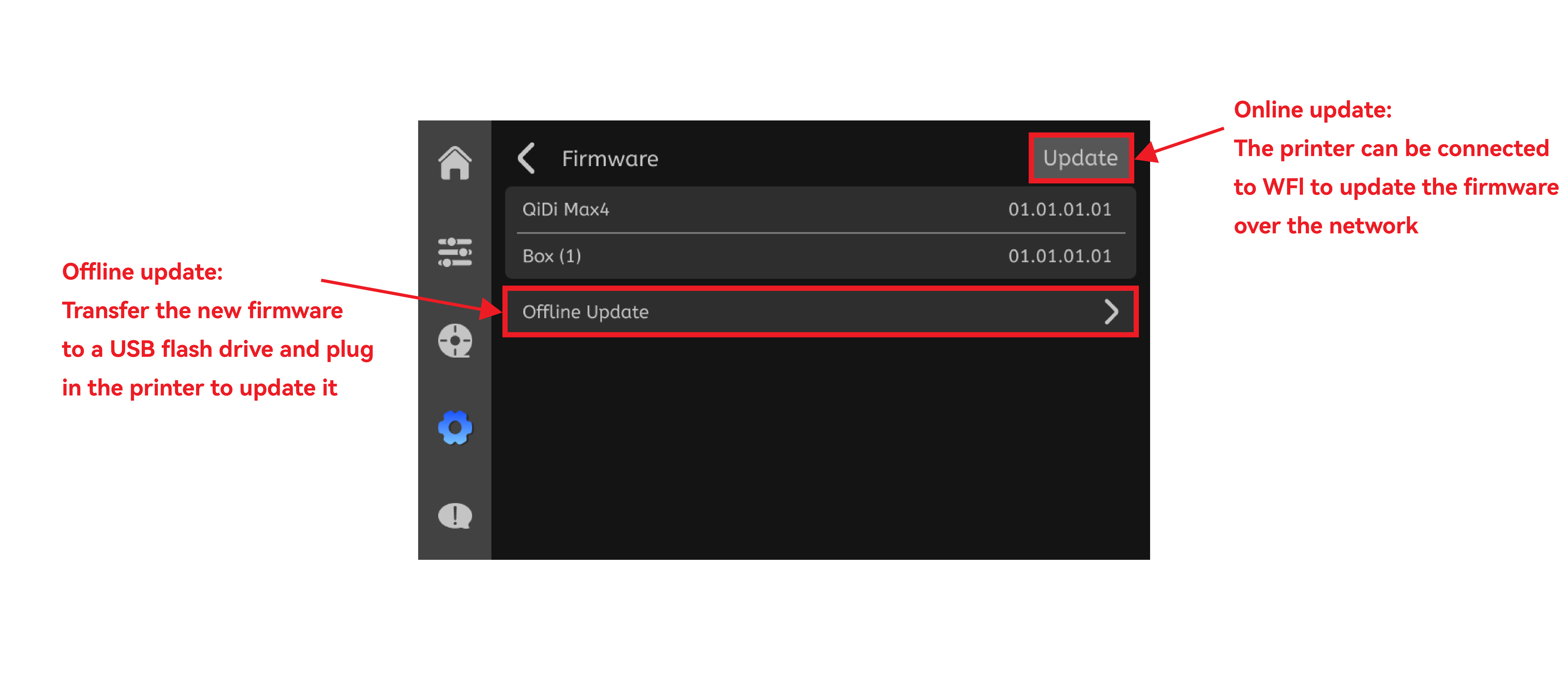
¶ X-Max4 firmware update offline
¶ Step1
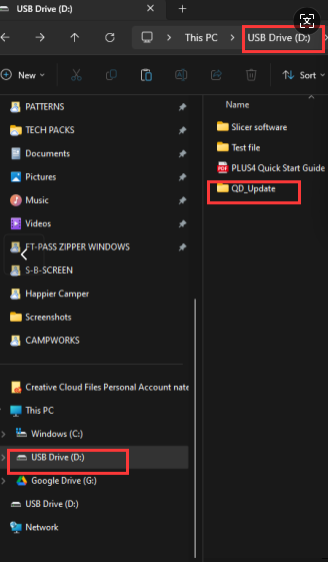
1)Create a new folder on your USB drive named "QD_Update".
2)Please download the packaged file QD_Update.zip, Drag the compressed file directly into the QD_Update folder, no need to extract it.
3)Then, connect the USB device to the printer to proceed with the offline update.
Update files: Please connect After-sales Support to get the latest version firmware.
¶ Step2
After your update completed, please do the Auto bed leveling and Input shaping.
¶ UI update failed, how to fix it
¶ Step1 Screen UI update
Please save the firmware UI file(mksscreen.recovery) to the first page of the USB drive as below photo:
UI file:Please connect After-sales Support to get the file.
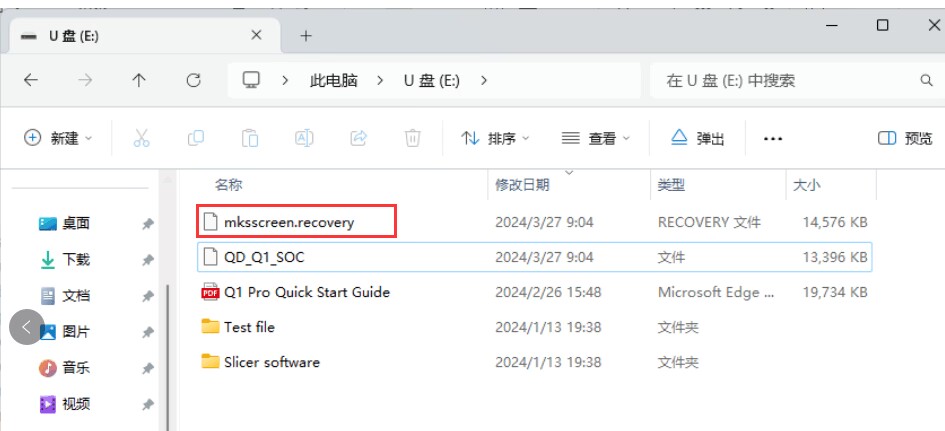
Then turn off the printer, wait for 30s, plug the usb pen drive on, then turn on the printer, check if the printer will be updated automatically .
¶ Step2 SOC update:
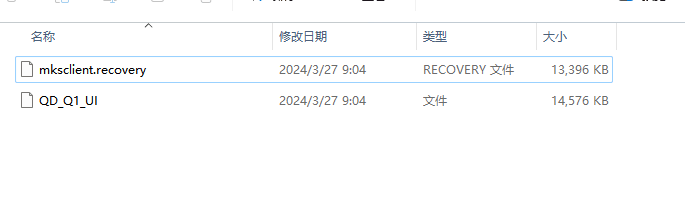
Please delete all other files in usb pen drive, then add soc file(mksclient.recovery) to to the first page of the USB drive, then turn off the printer, plug the usb pen drive, wait for 30s to turn on, it will updated automatically.
Soc file:Please connect After-sales Support to get the file.
¶ After-sales Support
If it can not work, please contact our after sales staff and they will help you.