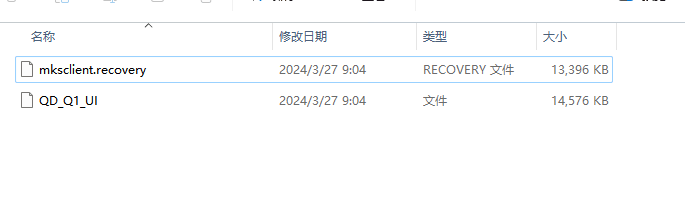
¶ X-Plus5 firmware update
Note:
- WARNING: Do not downgrade the firmware. Updating from a higher version to a lower version may cause various operational issues. Always ensure that you don't update to the previous version.
- Please update online after receiving the machine.
- Please keep the QIDIBOX powered on during the update.
- If you find any translation issues, please contact karl@qd3dprinter.com
¶ X-Plus5 Online Firmware Update
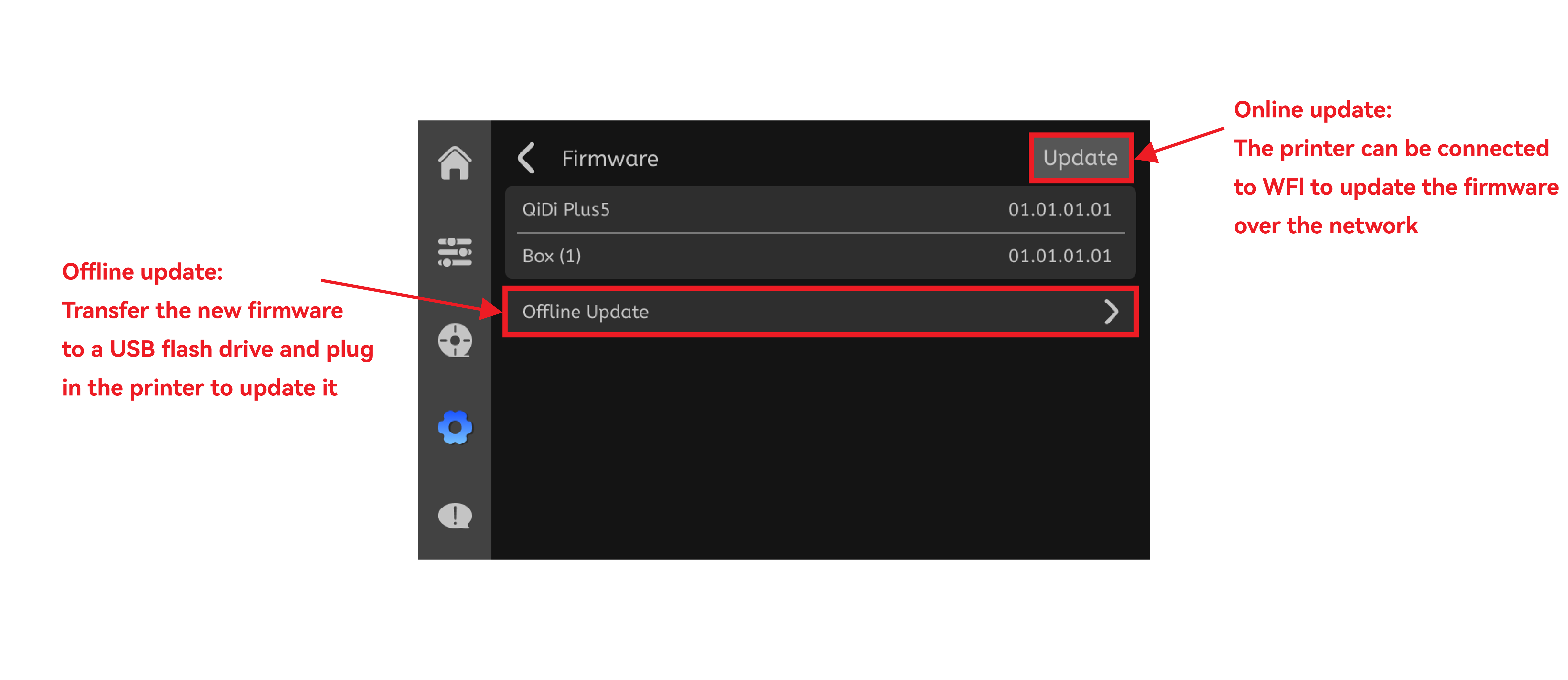
¶ X-Plus5 Offline Firmware Update
¶ Step 1
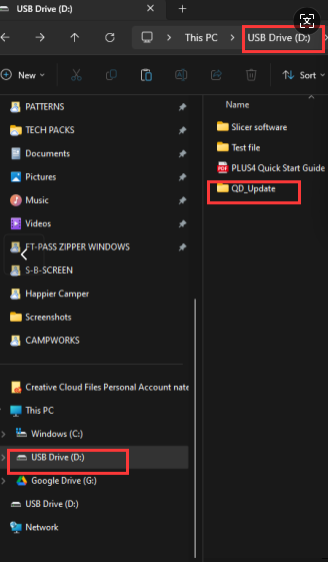
Create QD_Update in the root directory of the USB drive, save the firmware file into QD_Update, and then connect the USB drive to the printer for offline update. **
**Update file: Please contact after-sales support to obtain the latest version of firmware. **
¶ Step 2
After the update is complete, please perform automatic bed leveling and input shaping calibration. **
¶ UI update failed, how to fix
¶ Step 1: Screen UI Update
Please save the firmware file to the first page of the USB drive: change the UI file (QD_Plus5_UI) to "mksscreen.recovery", as shown below:
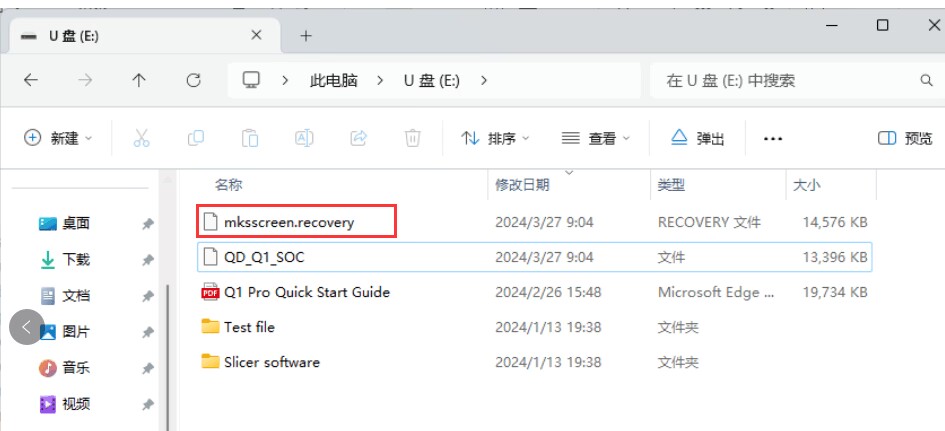
**Then turn off the printer, wait for 30 seconds, open the USB drive, and then turn on the printer. Check if the printer automatically updates. **
¶ Step 2: SOC Update:
Please delete the folder and the "mksscreen.recovery" file from the USB pen drive, then rename the QD_Plus5_SOC file to "mksclient.recovery". After that, turn off the printer, insert the USB pen drive, and wait for 30 seconds before turning it on. It will automatically update.. **