¶ Q2 Firmware Updates
Important Notes
- Do not downgrade firmware. Updating from a higher version to a lower version may cause abnormal operation or system errors. Always update to the same version or a newer version.
- Please perform an online firmware update after receiving the printer.
- Please keep the QIDIBOX powered on during the update.
- A multi-language UI is supported. If you find translation issues, please contact karl@qd3dprinter.com.
¶ Online Firmware Update (Recommended)
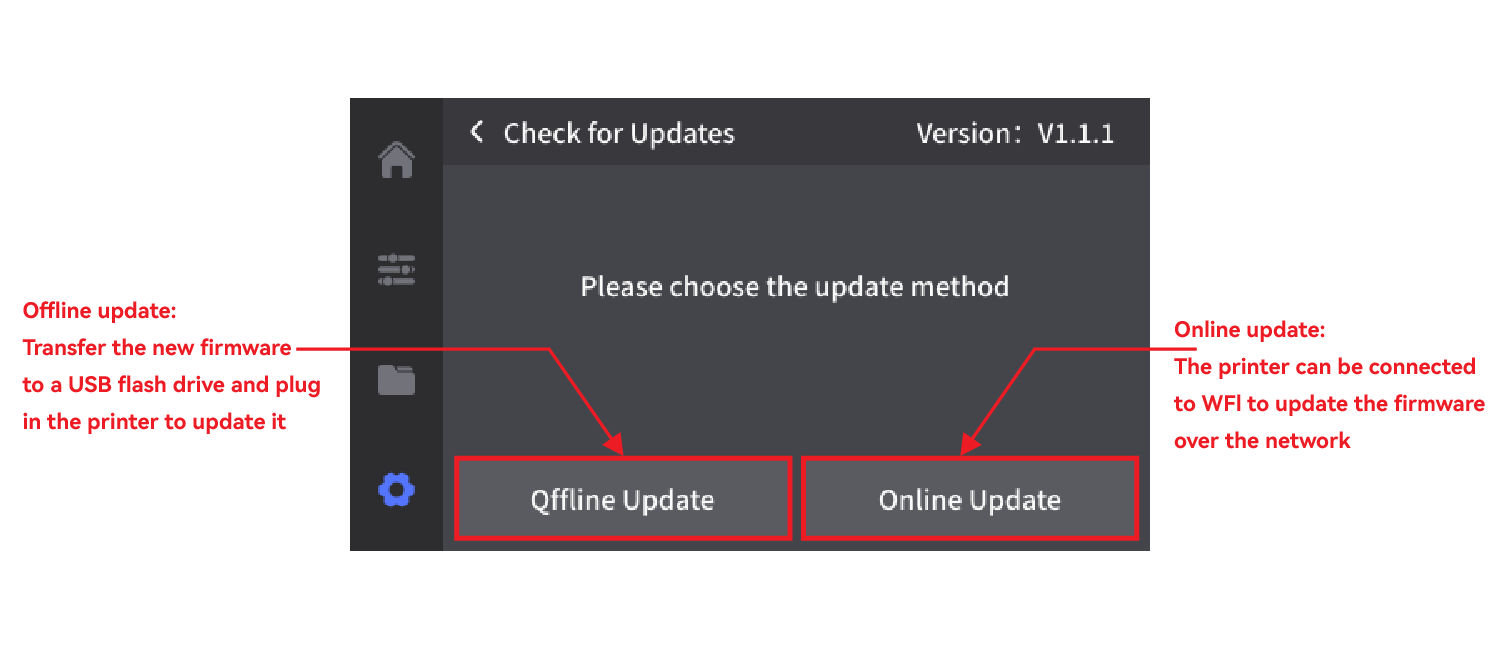
Online updating is the recommended method and ensures you receive the latest stable firmware automatically.
¶ Offline Firmware Update
Use this method only when an online update is unavailable.
¶ Step 1: Prepare the Firmware File
Download the firmware package QD_Update.zip. After extracting the file, copy the QD_Update folder to the root directory of a USB flash drive. Insert the USB flash drive into the printer to start the offline update process.
Firmware files: Please contact After-Sales Support to obtain the latest firmware version.
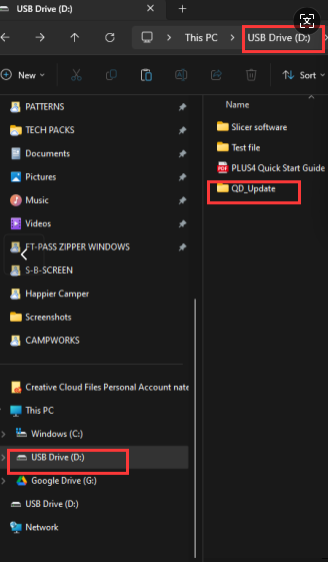
¶ Step 2: Post-Update Calibration
After the update is complete, perform the following calibrations:
- Auto Bed Leveling
- Input Shaping
These steps are required to ensure optimal print quality after a firmware update.
¶ After-Sales Support
If the firmware update fails or the printer does not function as expected, please contact our after-sales support team for assistance.