¶ How to Enable Timelapse
This guide explains how to enable and use the timelapse feature on the Q2 printer.
¶ How to Use Timelapse
¶ Using QIDI Studio
If you use QIDI Studio to slice the model and send the print job directly to the printer, timelapse support is handled automatically.
¶ Using Other Slicers
If you use other slicers, you must manually add the required timelapse code.
Please refer to the following guide:
Timelapse Code Guide
¶ Enable or Disable Timelapse
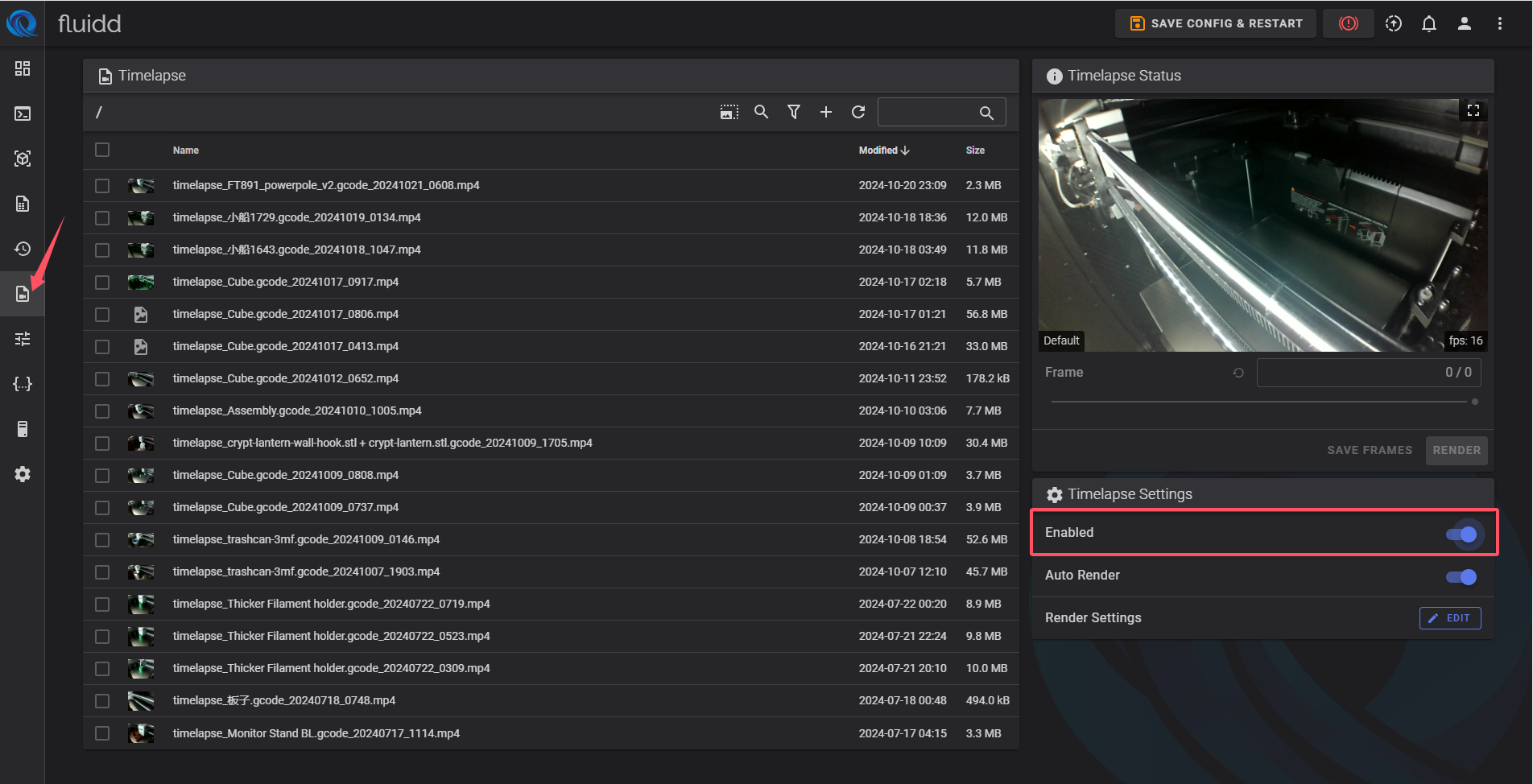
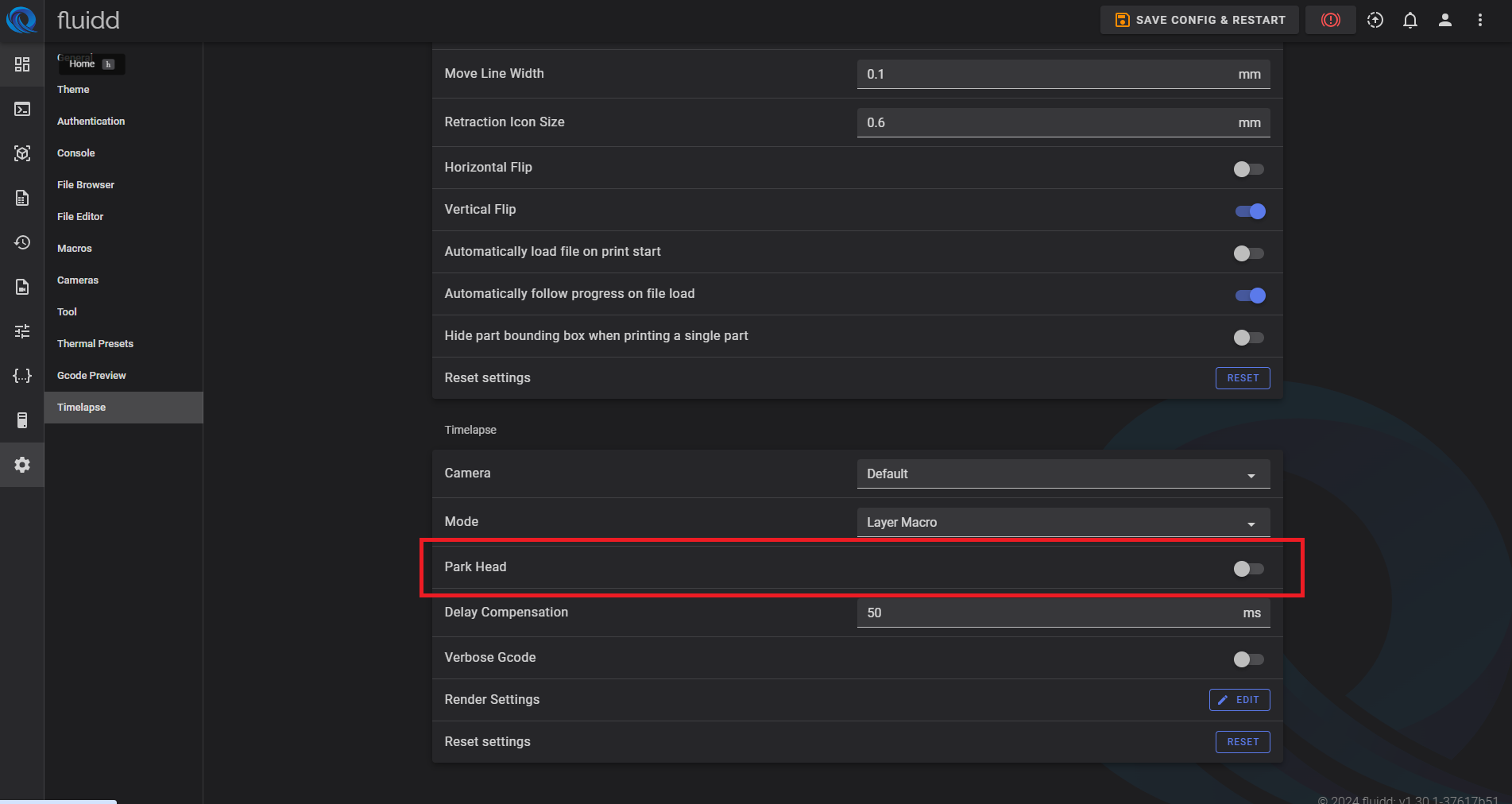
You can enable or disable the timelapse feature in the Timelapse tab of the Fluidd interface.
¶ Toolhead Parking Mode
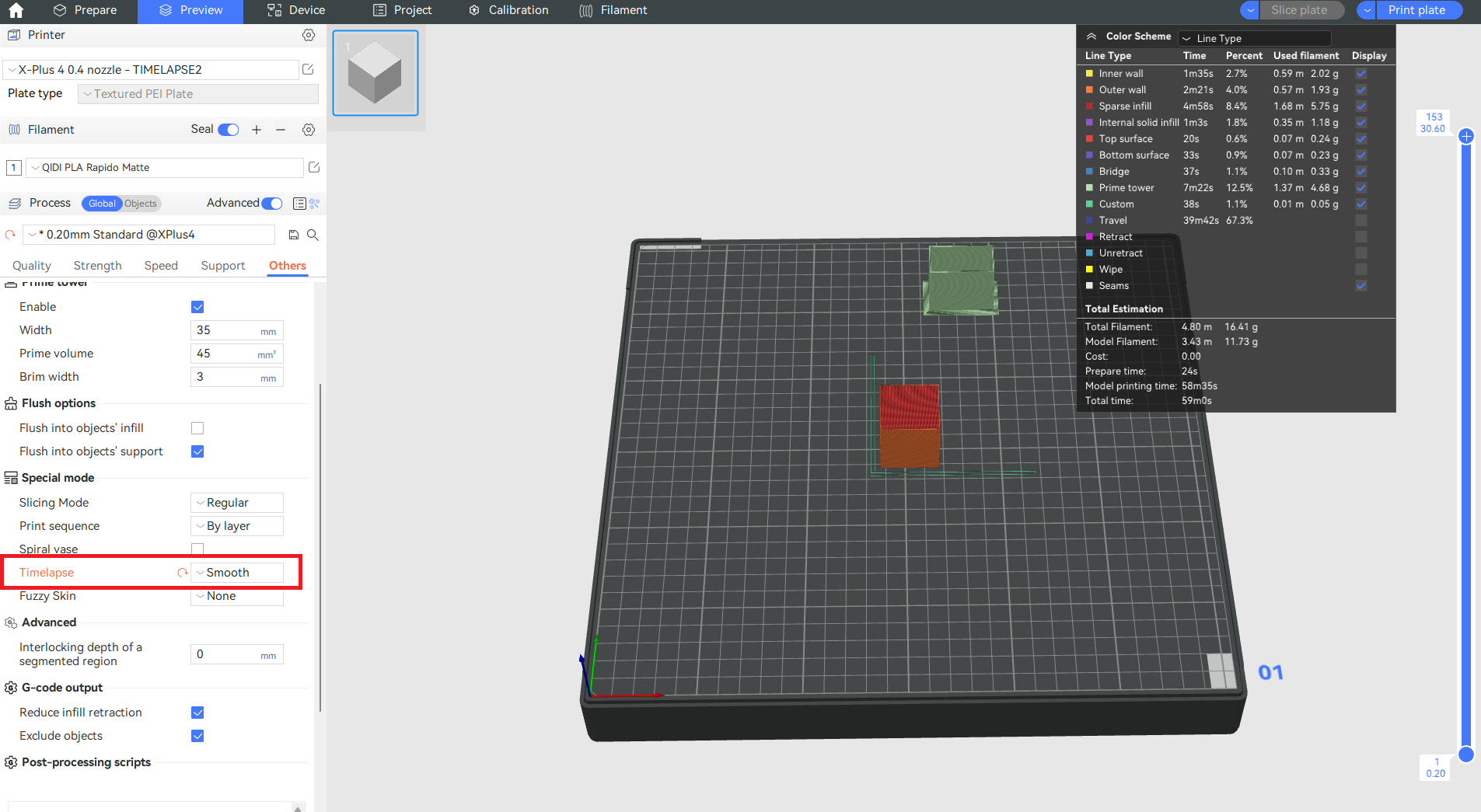
You can enable Smooth Mode to move the toolhead to the side during timelapse recording, preventing it from obstructing the camera view of the printed model.
¶ Printing from a USB Flash Drive
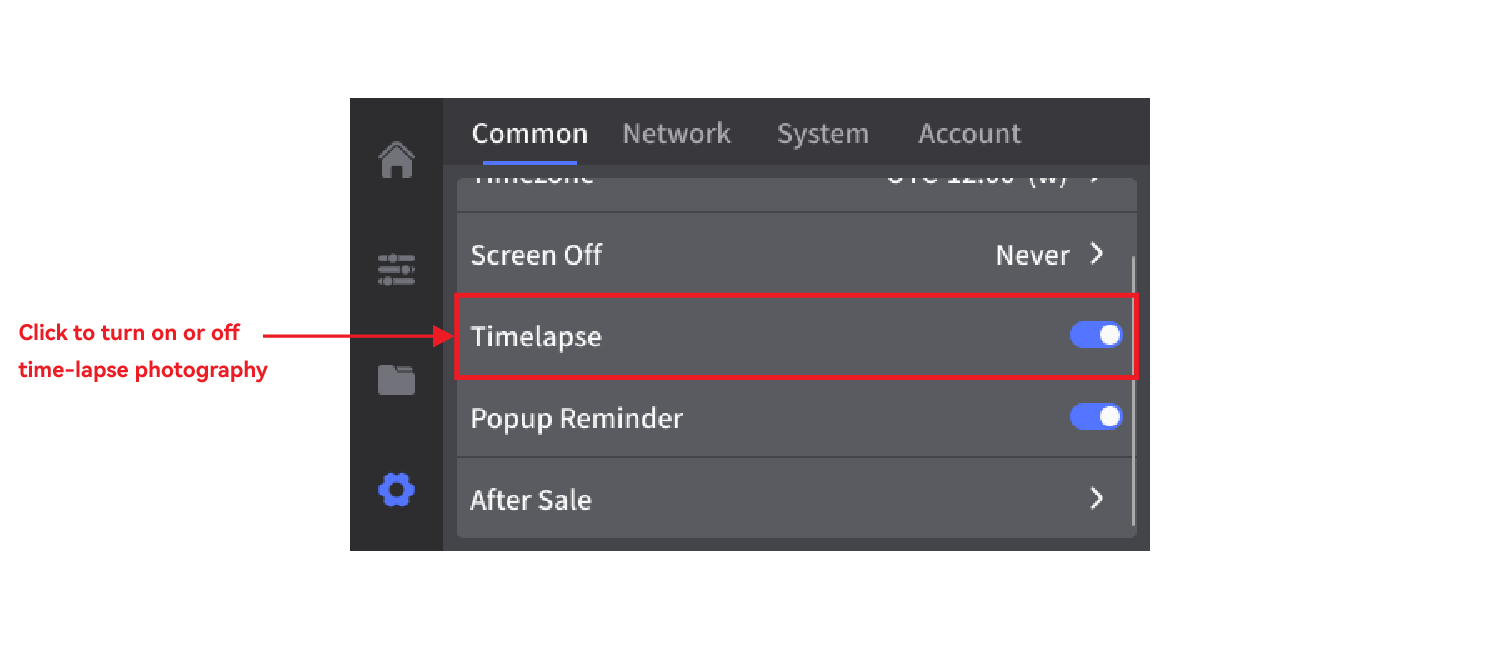
If you are printing from a USB flash drive, you should enable timelapse on the file preview screen before starting the print.
Warning:
Do not modify the printhead parking position in Fluidd. Doing so may cause unexpected behavior or system issues.
¶ How to Find the Timelapse Video
¶ Accessing Timelapse Videos in Fluidd
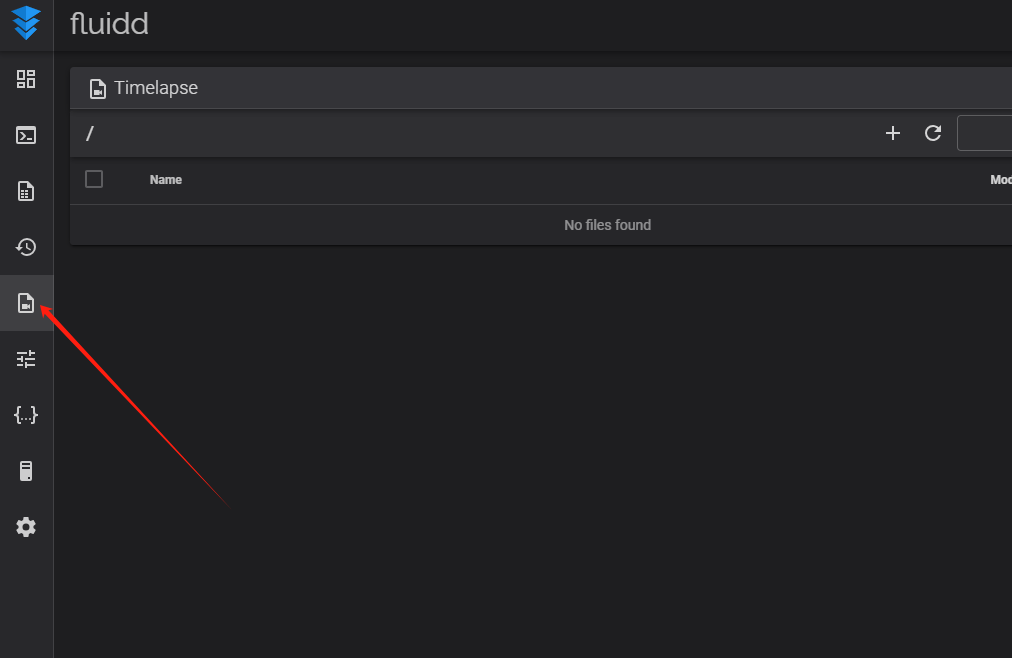
Click the Timelapse tab on the left side of the Fluidd console to view and download recorded timelapse videos.