Understanding the software version of the application is crucial for troubleshooting, ensuring compatibility with printer firmware, and accessing the latest features. This wiki provides a step-by-step process to help you check the software version in the QIDI Maker application.
¶ Why You Need to Know the Version Number
You need to know the version number, especially when:
1.When troubleshooting issues: The support team may ask for the app version to help diagnose the problem.
2.Printer firmware compatibility: If you experience connection or authorization issues between the app and the 3D printer,it could be due to compatibility problems. After updating your 3D printer's firmware, make sure the QIDI Maker app is also updated to the latest version to maintain compatibility.
3.Access to new features: New features are often only available in the latest app versions. By checking the version number, you can determine if an update is needed to unlock these features.
¶ How to Check the Version Number
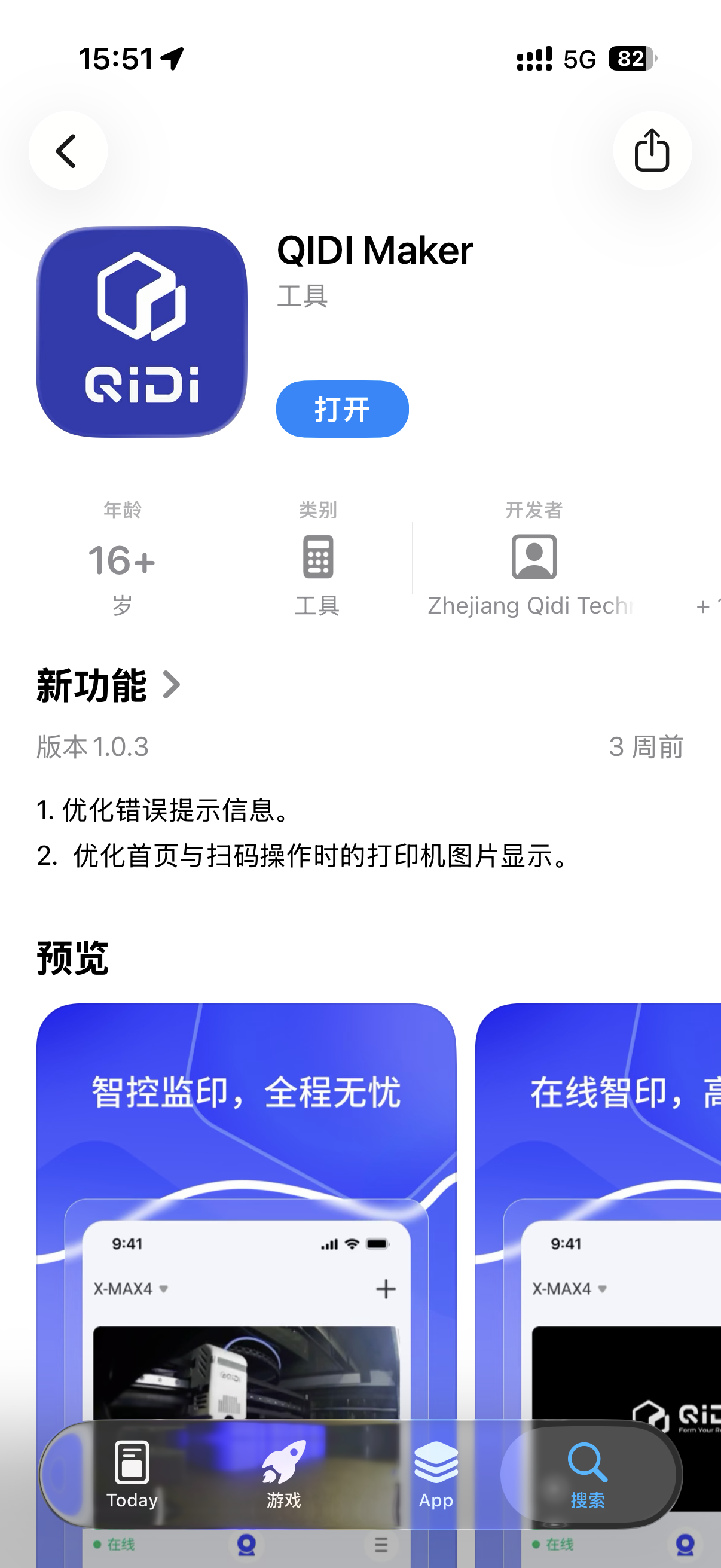
Enter the APP Store to view
¶ Troubleshooting
If you can’t update the app to the latest version, or if it behaves unexpectedly, consider the following:
- Ensure phone OS version compatibility: Verify that your phone meets the minimum operating system requirements for the QIDI Maker app, which are iOS 13.0 or later for iPhones/iPads and Android 6.0 or later for Android devices. You can check your OS version via Settings > General > About > Software Version (iOS) or Settings > About Phone > Android Version (Android). If your OS is outdated, update it through Settings > General > Software Update (iOS) or Settings > System > System Update (Android). If your device cannot support the required OS, consider using a newer device or managing the printer via QIDI Studio on a PC.
- Restart the app: Close it completely and reopen it. by closing it completely and reopening it.
- Clear app cache and data: App cache can sometimes result to issues. To do this, on Android, go to Settings > Apps > QIDI Maker > Storage > Clear Cache. If the issue persists, select Clear Data (note: this may require you to log in again). On iOS, there is no direct cache-clearing option. Try offloading the app (Settings > General > iPhone Storage > QIDI Maker > Offload App) and then reinstalling it.
- Reinstall the App: Uninstall the QIDI Maker app and reinstall it. To uninstall, long-press the app icon and select "Remove App" (iOS) or "Uninstall" (Android). Then, download the latest version. Note that you will need to log in again.