¶ X-Plus 4 Firmware Update
Important
- Latest firmware releases: https://github.com/QIDITECH/QIDI_PLUS4/releases
- Do not downgrade firmware. Installing a lower version may cause system instability. Only update to the same or a newer version.
- Firmware earlier than V1.4.0 requires an offline update. Firmware V1.4.0 and later supports online updates.
- The printer supports a multi-language UI. For translation issues, contact: karl@qd3dprinter.com
¶ Online firmware update
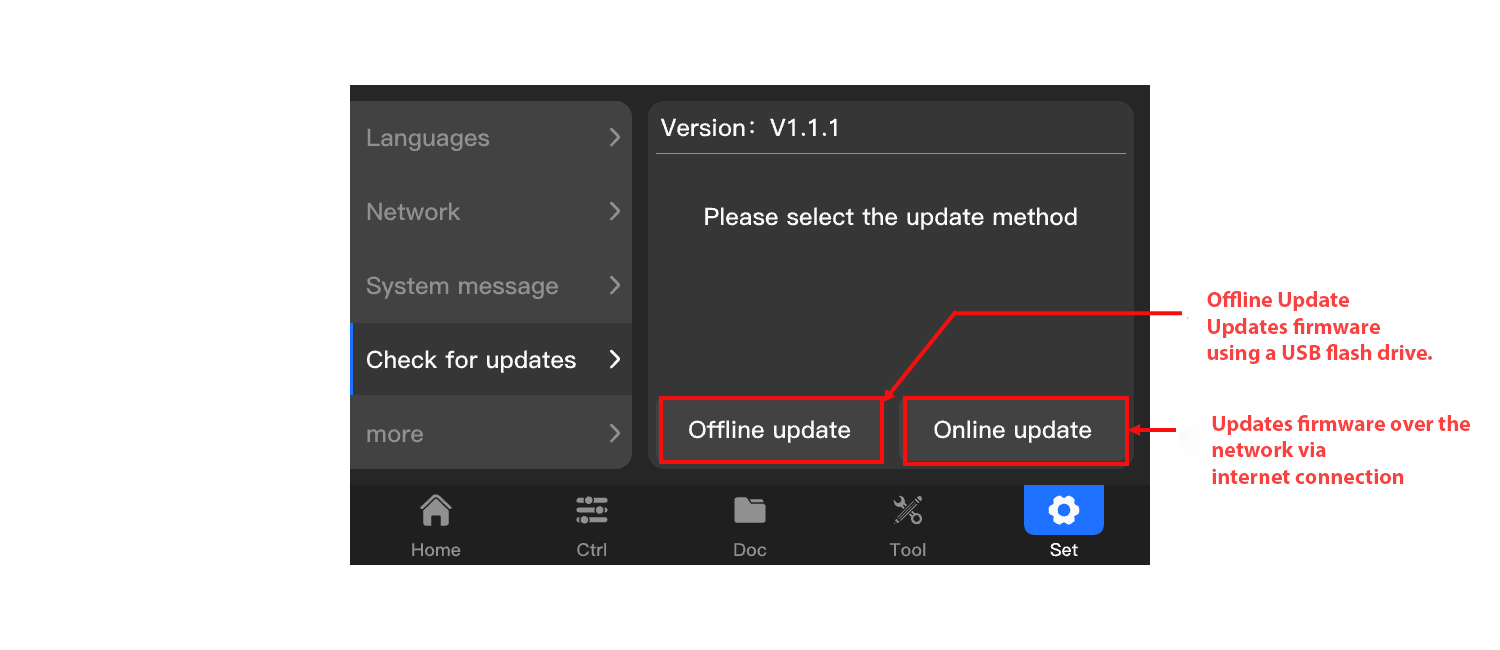
- Open Settings on the touchscreen.
- Tap Check for updates.
- Follow the on-screen instructions to install the latest firmware.
- Wait for the printer to restart automatically.
Important: Do not turn off the printer or disconnect power during the update process.
¶ Offline firmware update
¶ Step 1 — Prepare the USB drive
- Download Plus4_V1.X.X.zip from:
https://github.com/QIDITECH/QIDI_PLUS4/releases - Extract the ZIP file.
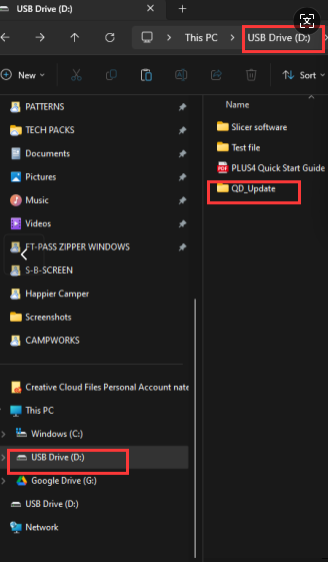
- Copy the
QD_Updatefolder to the root directory of a USB flash drive. - Insert the USB flash drive into the printer to start the update.
¶ Step 2 — Recalibrate after updating
After the update is complete:
- Run Auto bed leveling
- Perform Input shaping
¶ UI Update Recovery
If the UI update fails, follow the recovery procedure below.
¶ Step 1 — Screen UI recovery
- Download the UI recovery file:
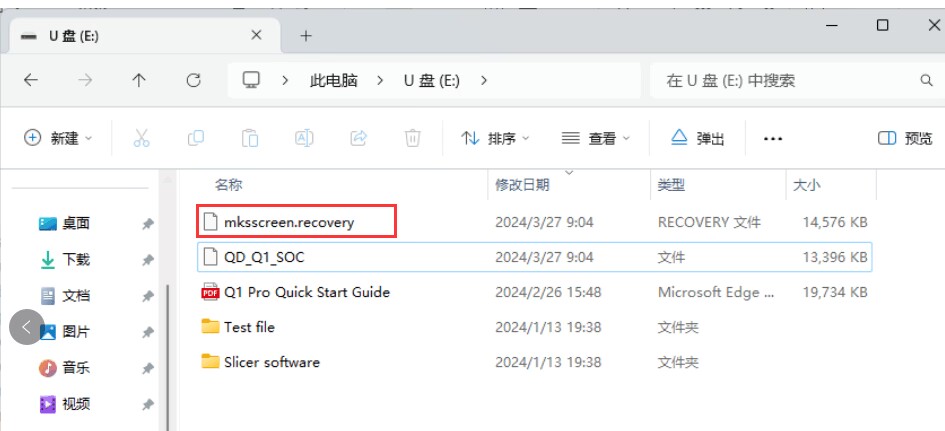
https://drive.google.com/drive/folders/1M_jKdhecy0Y_00P3RRGefqJ9p7Q2mV_b?usp=sharing - Copy
mksscreen.recoveryto the root directory of a USB flash drive. - Turn off the printer.
- Wait 30 seconds.
- Insert the USB flash drive.
- Turn on the printer.
- Confirm that the update starts automatically.
¶ Step 2 — SOC recovery
- Remove all other files from the USB flash drive.
- Download the SOC recovery file:
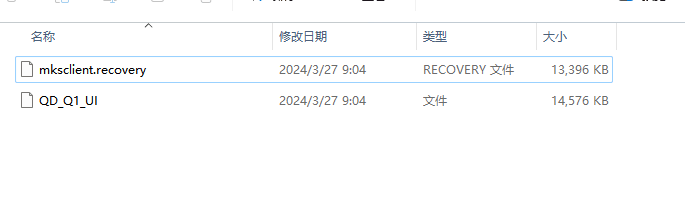
https://drive.google.com/drive/folders/1SllNtstbM-8c_yE3yaKQg3-DNj8JdXyh?usp=sharing - Copy
mksclient.recoveryto the root directory of the USB flash drive. - Turn off the printer.
- Insert the USB flash drive.
- Wait 30 seconds, then turn on the printer.
- Confirm that the update starts automatically.
¶ After-sales support
If the issue persists, contact after-sales support: