¶ Overview
When designing functional parts, even small dimensional errors can cause poor fit or assembly failure. This is especially true for mechanical parts and interlocking structures.
This happens because filament naturally shrinks during 3D printing due to a physical property called thermal contraction. The process works as follows:
- The filament is extruded from the hot nozzle and deposited at a high temperature.
- After deposition, it gradually cools and solidifies.
- During cooling, the material shrinks slightly. This makes the finished part smaller overall, with the effect being most noticeable along the X and Y axes.
Different filaments shrink by different amounts. To solve this problem, QIDI Studio provides a shrinkage compensation setting. It adjusts or scales the model to offset the shrinkage that occurs as the filament cools.
¶ Filament Shrinkage Settings in QIDI Studio
QIDI Studio provides shrinkage compensation settings in the filament profile. You can define a shrinkage value for each spool of filament individually.
Follow these steps:
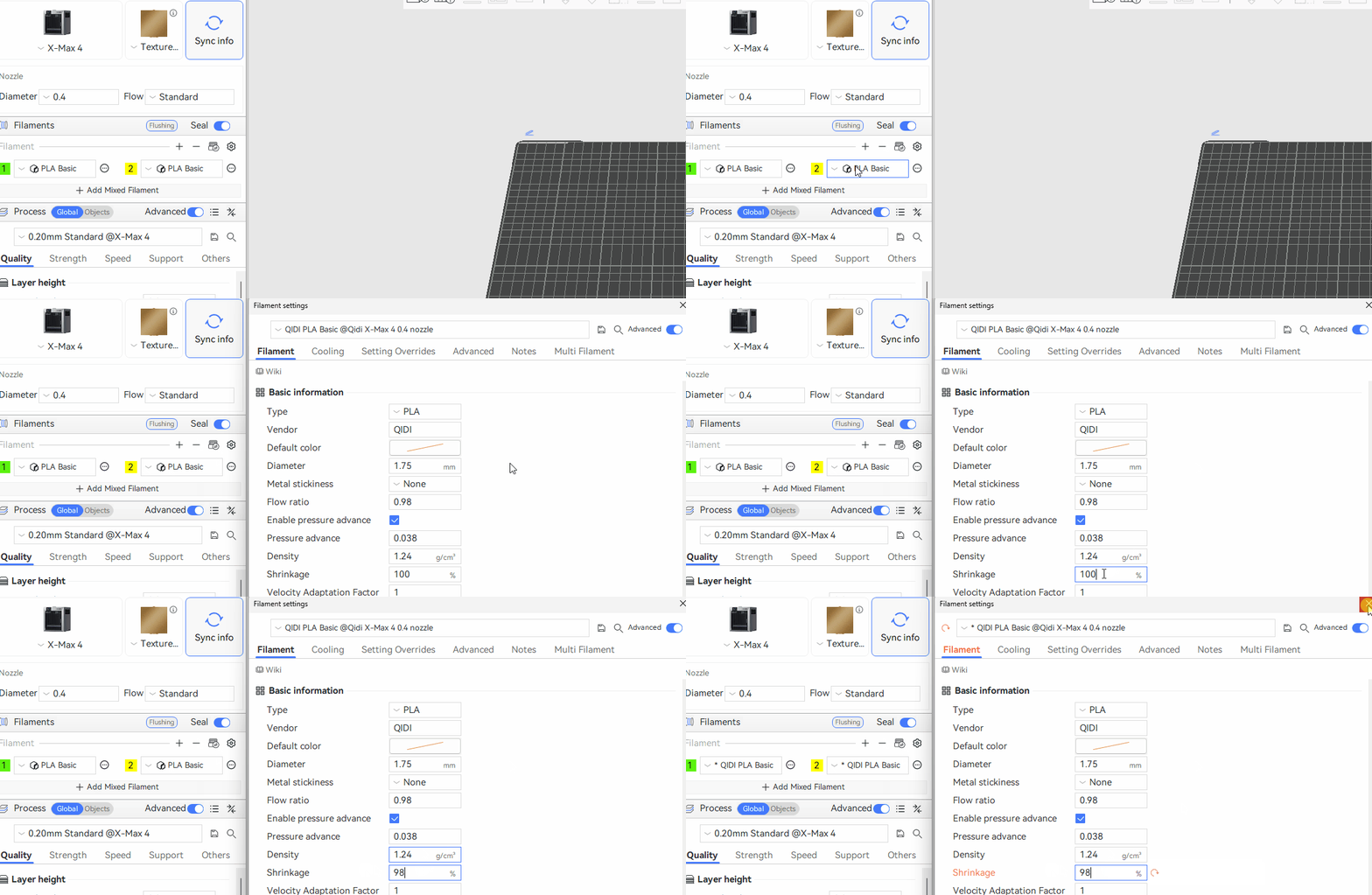
Note: This setting applies to a single filament only. It is not a global adjustment. Please set the shrinkage value for each filament in your project separately.
Shrinkage compensation is shown as a percentage (%). The default value is 100%. When you keep the default value, no scaling is applied. The model prints at its original size in the slicer.
¶ Shrinkage Compensation Calculation
To know the value to put in the Shrinkage section, use this formula to calculate the shrinkage rate:
Shrinkage Compensation (%) = (Measured Size / Designed Size) × 100%
| Parameter | Description |
|---|---|
| Measured Size | The actual size of the printed part, measured with calipers |
| **Designed Size ** | The original size of the 3D model |
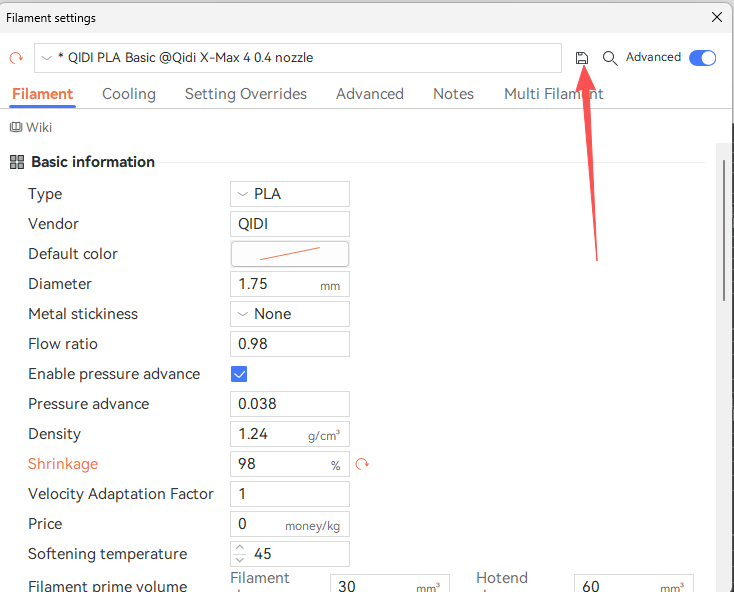
Note: After making changes, be sure to click the save icon in the top-right corner to save the profile.
¶ Shrinkage Rate Test
You do not need to print a complex model for the test. Just print a standard cube (for example, 20 × 20 × 20 mm ).
Operate step:
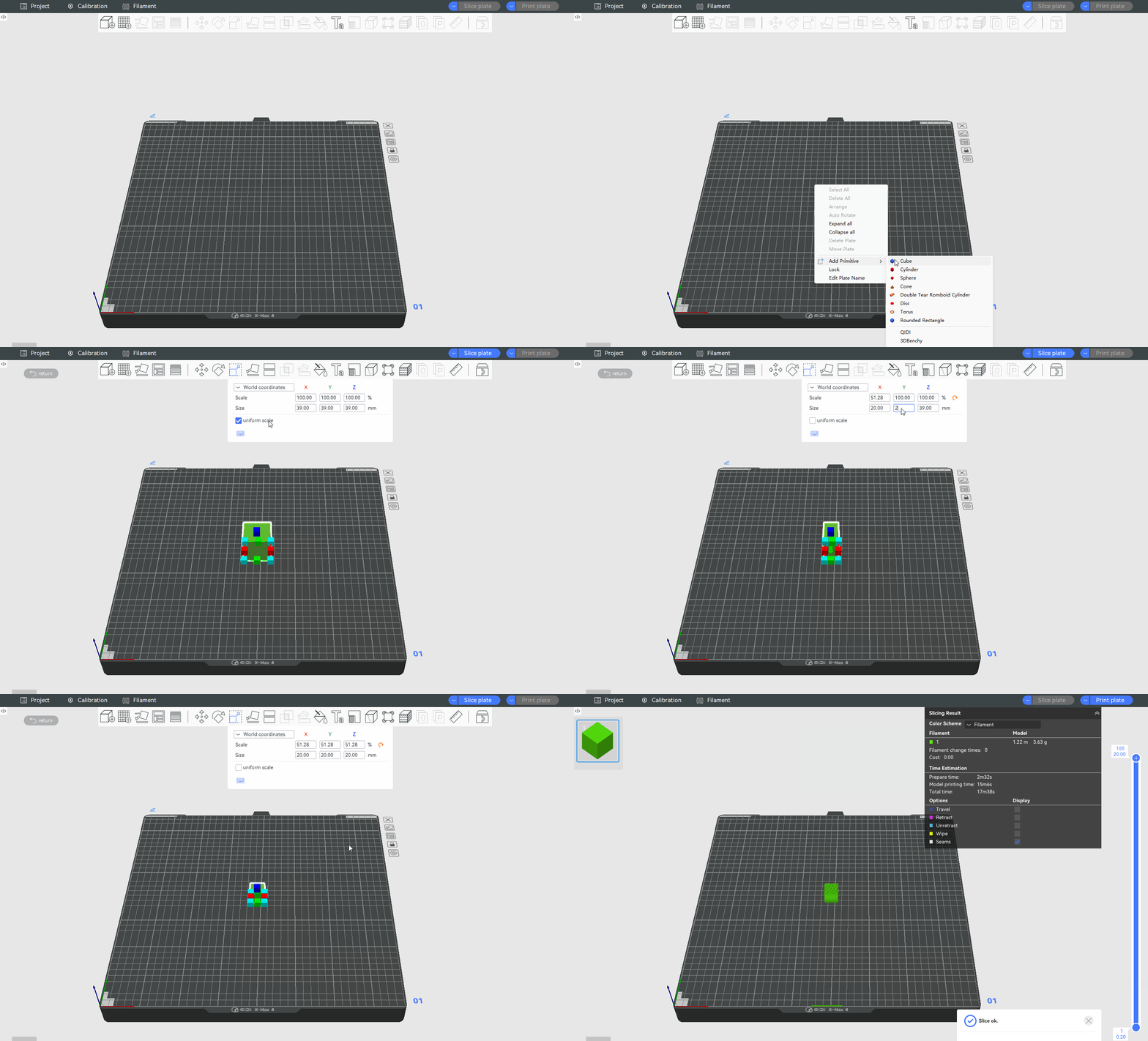
Slice and print, wait for the model to cool to room temperature, and use a caliper to measure.
We printed a 20 × 20 × 20 mm cube. After measuring, all directions came out to 18.5 mm.
sing the formula:
Shrinkage rate = (18.5 / 20) × 100% = 92.5%
Enter 92.5% in the filament shrinkage section in QIDI Studio.
- For higher accuracy: You can make another adjustment.
- For high assembly requirements: We recommend calibrating the error for each model separately, because different structures show different errors.
- For parts without strict assembly needs: You can use the default values directly, or make one simple adjustment.
¶ X-Y Hole/Contour Compensation
The X-Y Hole/Contour Compensation feature lets you fine-tune part sizes after shrinkage compensation is calibrated.
To learn how it works, please see this wiki: X-Y Hole/Contour Compensation.
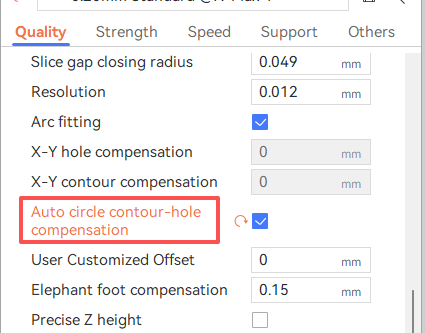
¶ Auto Circle Contour-Hole Compensation
This feature is designed to improve the dimensional accuracy of circular holes in 3D printing. It is especially useful for assembly purposes.
It works by standardizing the print speed and applying a specific compensation value based on the material used. This offsets the shrinkage that naturally occurs during printing.
Best for: Circular holes or shafts on a horizontal plane with a diameter no larger than 50 mm.
How to enable: In QIDI Studio, go to "Quality → Precision" and turn on the "auto circle contour-hole compensation" option.